
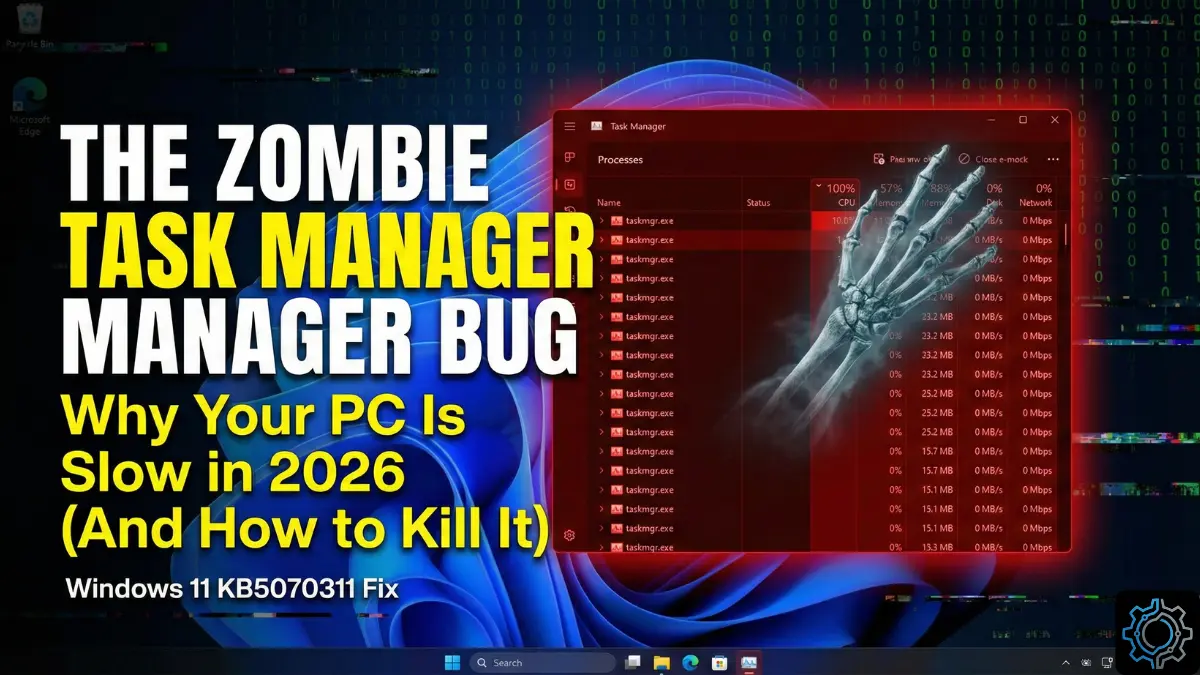
Happy New Year. If you are reading this, your 2026 likely started the same way mine did: with a sluggish, unresponsive PC ( Zombie Task Manager high CPU usage ) that sounds like a jet engine.
Last night, I noticed my frame rates dropping in Cyberpunk. Naturally, I did what any Windows user has done for the last 30 years: I pressed Ctrl + Shift + Esc to open Task Manager and see what was eating my CPU. I saw nothing unusual. I closed it. Five minutes later, the lag got worse. I opened Task Manager again. Still nothing. I closed it.
By the third time, my mouse was stuttering.
I decided to dig deeper using Command Prompt, and that’s when I saw it. The tool I was using to find the problem WAS the problem. There wasn’t just one Task Manager running. There were twelve.
If you installed the December “Holiday” Preview Update (KB5070311), you are likely suffering from the “Zombie Task Manager” Bug. This is a critical flaw where closing the Task Manager window doesn’t actually kill the app—it just hides it, leaving the process running in the background to chew up your CPU.
Here is the definitive log on how to exorcise these ghosts and get your speed back.
The Diagnosis: What is the “Zombie Task Manager high CPU” Bug?
To fix this, you need to understand why it is happening. In Windows 11 24H2/25H2, Microsoft rewrote the Task Manager code to support “Dark Mode” and “Process Grouping” (where it groups chrome.exe tabs together).
The Glitch
The latest update introduced a communication error between the Task Manager UI (the window you see) and the Kernel (the engine that runs it). When you click the “X” button:
- Normal Behavior: The UI sends a “Terminate” signal. The process ends. RAM is freed.
- The Bug Behavior: The UI sends a “Hide” signal. The window disappears from your desktop. But
taskmgr.exestays active in the background, polling your CPU every second to update data that nobody is looking at.
The Multiplier Effect
The scary part is that Windows allows multiple instances of Task Manager to run if they are “background” processes.
- 8:00 AM: You check CPU. Close it. (1 Ghost Process).
- 9:00 AM: You check RAM. Close it. (2 Ghost Processes).
- 12:00 PM: You have 5+ instances running.
- Each instance consumes about 2% CPU and 60MB RAM.
- Total Impact: 10-15% CPU load doing absolutely nothing.
If your fans are spinning while your PC is idle today, this is why.
Phase 1: Confirmation (Do You Have It?)
Before we start killing processes, let’s verify you have the bug. You cannot use Task Manager to check this (obviously). We need to use PowerShell or CMD.
The “Ghost Hunter” Command
- Right-click your Start Button and select Terminal (Admin) or Command Prompt (Admin).
- Type this command and hit Enter:DOS
tasklist /fi "imagename eq taskmgr.exe"
Interpreting the Results
- Healthy PC: You should see “INFO: No tasks are running…” (assuming you closed the window).
- Infected PC: You will see a list. A long list.Plaintext
Image Name PID Session Name Session# Mem Usage ========================= ======== ================ =========== ============ taskmgr.exe 4520 Console 1 64,820 K taskmgr.exe 8912 Console 1 68,100 K taskmgr.exe 2100 Console 1 62,400 KIf you see this list while the window is closed, you have the bug.
Fix 1: The “Mass Extinction” (Immediate Relief)
If you need your PC speed back right now (maybe you are in a ranked match or rendering a video), do not reboot. Rebooting might just restart them if you have “Startup Boost” enabled.
We are going to use the TaskKill command to slaughter every rogue instance instantly.
The Command
In your Administrator Command Prompt, type:
DOS
taskkill /f /im taskmgr.exe
/f= Force (Do not ask nicely)./im= Image Name (Select by name).
The Result: You should see a cascade of “SUCCESS: The process… has been terminated” messages. Your CPU fan should immediately quiet down.
- Warning: This is a temporary fix. The next time you open Task Manager, the zombie will return. Use this to clear the pipes before applying the permanent fix below.
Fix 2: The “Eco Mode” Trap (The Prevention)
Why does Task Manager eat so much CPU even when hidden? Because the “Update Speed” is set to “Normal” or “High”. Until you uninstall the bad update, you can neuter the bug by putting Task Manager into a “Coma.”
- Open Task Manager one last time.
- Click the Settings (Gear Icon) in the bottom left corner.
- Find “Real time update speed”.
- Change it from “Normal” to “Paused”.
Why this helps: Even if the zombie process stays running in the background, setting it to “Paused” means it stops polling your hardware. A paused ghost uses 0% CPU.
- The Downside: When you actually want to use Task Manager, you have to hit “Refresh” manually or switch it back to “Normal.” It is annoying, but it saves your battery.
Fix 3: The “Rollback” (The Permanent Solution)
The root cause is the KB5070311 update. This is a “Preview” update (released late December 2025), which means it is optional and often buggy. The only way to permanently fix the close button is to remove this update.
Step-by-Step Uninstall Guide
- Open Settings (
Win + I). - Go to Windows Update > Update History.
- Scroll down to the bottom and click Uninstall Updates.
- Look for:Cumulative Update for Windows 11 Version 24H2/25H2 (KB5070311)
- Click Uninstall.
The Process: Your PC will restart. It will say “Getting Windows Ready.” This takes about 5-10 minutes. Once it reboots, you will be back on the stable November/December build. The bug will be gone.
Blocking It from Returning
Windows will try to reinstall it tomorrow. To stop this:
- Go to Windows Update.
- Click “Pause Updates” and select “Pause for 1 week.”
- Note: By next week, Microsoft will likely have released a “Fixed” version of the patch (Patch Tuesday).
Fix 4: The Registry Hack (For Advanced Users)
If you cannot uninstall the update (maybe it is enforced by your work IT policy), you can force Windows to use the “Legacy” process termination logic.
Warning: We are editing the Registry. One wrong move can break your system. Proceed with caution.
- Press
Win + R, typeregedit, and hit Enter. - Navigate to this path:
HKEY_LOCAL_MACHINE\SOFTWARE\Microsoft\Windows NT\CurrentVersion\Image File Execution Options - Right-click the Image File Execution Options folder -> New -> Key.
- Name the key
taskmgr.exe. - Inside that new key, create a New -> DWORD (32-bit) Value.
- Name it
UseByPass. Set the value to1.
Note: This specific registry key forces Windows to bypass the new “App Sleep” state for the targeted executable, forcing a hard close.
Why Is This Happening Now? (The Technical Deep Dive)
You might be wondering: “How does Microsoft break the most important tool in Windows?” The answer lies in the new NPU (Neural Processing) integration.
In late 2025, Microsoft started offloading some UI animations to the NPU to save battery. The new Task Manager uses WinUI 3.
- The Theory: When you click Close, the NPU is supposed to catch the “Close Animation” and then hand the “Kill Signal” back to the CPU.
- The Bug: In KB5070311, that hand-off fails. The NPU plays the “Fade Out” animation (so you think it’s gone), but the CPU never gets the memo to kill the thread. It enters a “Suspended-But-Active” state, similar to how smartphone apps stay open in the background.
This is the price of modernizing legacy code. taskmgr.exe is 30 years old. Wrapping it in modern AI code was bound to cause friction.
The “False Positive” Warning
I need to address one common confusion. If you look in the “Details” tab and see taskhostw.exe or RuntimeBroker.exe, these are NOT the Task Manager bug. These are normal Windows background services.
The bug is strictly related to taskmgr.exe. If you see anything else using high CPU, do not indiscriminately kill it using the commands above. You could crash your audio or Wi-Fi.
Verdict: Don’t Let Ghosts Haunt Your 2026
It is frustrating that on Day 1 of 2026, we are fighting our own operating system. But until the January 13th Patch Tuesday arrives, you are on your own.
My Advice:
- Run the
taskkillcommand today. - Uninstall KB5070311 if you can.
- If you are a gamer, do not leave Task Manager open on a second monitor “just to check temps.” Ironically, observing the system is currently what destroys the system. Use a third-party tool like HWMonitor or MSI Afterburner for now—they are not affected by this Microsoft UI bug.
Happy New Year, and may your frame rates be high and your temperatures low.
People Also Ask (FAQs)
Q: Why does Task Manager say 0% CPU but my fans are loud?
A: This is a symptom of the bug! If the active Task Manager window is bugged, it stops reporting data correctly. It might show 0% while the ghost instances in the background are actually using 100%. Trust your ears (fan noise) over the screen.
Q: Will restarting the PC fix the zombie processes?
A: Yes, a restart clears the RAM. However, as soon as you open Task Manager once to check something, the bug starts all over again.
Q: Is there a safe alternative to Task Manager?
A: Yes. I highly recommend Microsoft Process Explorer (part of Sysinternals). It is more powerful, looks like the old Windows 7 Task Manager, and does not have this bug. It is the professional’s choice.
Q: Can I just delete taskmgr.exe?
A: Absolutely not. That is a core system file. If you delete it, Windows might fail to boot or show a blue screen (BSOD). Never delete files in System32.
Q: Does this affect Windows 10?
A: No. This bug is specific to the Windows 11 24H2 / 25H2 visual update. Windows 10 uses the older, legacy Task Manager which is stable.