
- ↳The Incident: The “Hot Bag” Surprise
- ■The Diagnosis: What is AppXSVC Bug and Why Does It Hate You?
- ↳The Jan 2026 Bug (The Loop)
- ■Fix 1: The “Metered Connection” Trick (The Instant Stop)
- ■Fix 2: The Registry Edit (The Permanent Solution)
- ↳Step 1: Open RegEdit
- ↳Step 2: Navigate to the Hive
- ↳Step 3: Modify the “Start” Trigger
- ↳Step 4: Repeat for “ClipSVC”
- ■Fix 3: The “Store Reset” (Clearing the Jam)
- ↳The PowerShell Command
- ■Fix 4: The “Background Apps” Nuclear Option (Windows 11 Pro Only)
- ■The “False Positive” Warning: When High CPU is Normal
- ■Lab Verification: The Aftermath
- ■Verdict: Don’t Let “Modern Standby” Kill Your Bag
- ↳FAQs
- ↳Q: Can I just Disable AppXSVC in Services.msc?
- ↳Q: Will this delete my apps?
- ↳Q: Why is wsappx using so much memory?
- ↳Q: Does this affect Windows 10?
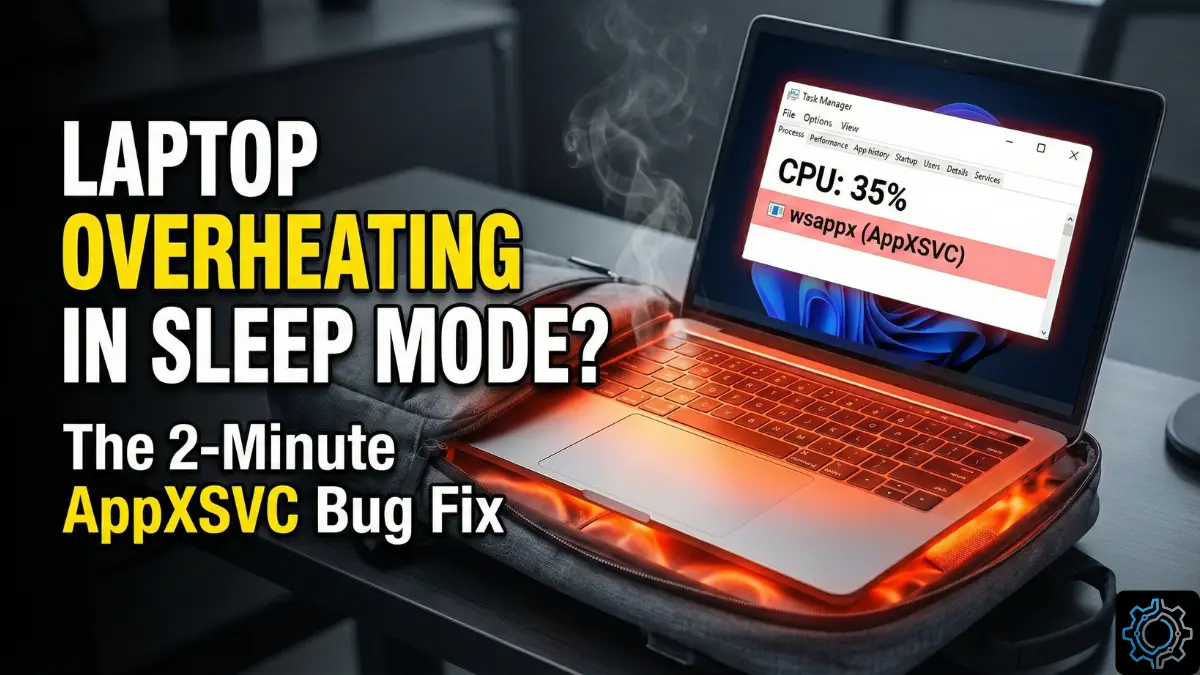
The Incident: The “Hot Bag” Surprise
It (AppXSVC Bug) happened yesterday morning. I pulled my laptop out of my backpack, and it felt like I was holding a fresh tray of lasagna.
It was supposed to be in “Sleep Mode.”
Instead, the fans were spinning at 100%, the chassis was hot enough to fry an egg, and my battery—which was at 90% when I packed it—was dead. 0%.
I didn’t have a virus. I didn’t have a crypto miner running.
I had Windows 11.
After plugging it in and diving into Task Manager, I found the culprit immediately. It wasn’t Chrome, and it wasn’t a game. It was a generic, faceless system process sitting at the top of the list, chewing up 35% of my CPU and 100% of my Disk:
wsappx
(Sub-process: AppX Deployment Service / AppXSVC)
If you have updated your PC in the last two weeks (specifically the December 2025 “Holiday” Patch KB5072911), there is a high chance your laptop is doing the same thing right now.
I spent the last 24 hours diagnosing why this service went rogue and how to kill it without breaking the Microsoft Store. Here is the full log on how to reclaim your battery life.
The Diagnosis: What is AppXSVC Bug and Why Does It Hate You?
Before we start editing the Registry, you need to know what you are fighting.
AppXSVC (AppX Deployment Service) is the engine inside Windows 11 responsible for installing, updating, and removing Microsoft Store apps. Whenever you update Calculator, WhatsApp, or Phone Link, this service does the heavy lifting.
The Jan 2026 Bug (The Loop)
Normally, this service runs for 2 minutes, updates an app, and goes back to sleep.
However, the recent KB5072911 update introduced a conflict in the “License Manager” (ClipSVC).
- The Glitch (AppXSVC Bug): Windows thinks an app needs an update. It starts AppXSVC.
- The Error: The license check fails silently.
- The Loop: Instead of stopping, Windows tries again. And again. And again. Forever.
This creates the “Infinite Loop of Death.” Your processor never idles. Your fans never stop. And if you put your laptop in your bag, it cooks itself because it refuses to enter “Modern Standby” sleep.
If you see wsappx using more than 5% CPU for more than 5 minutes, you have the bug. Here is how I fixed it.
Fix 1: The “Metered Connection” Trick (The Instant Stop)
If you are currently reading this on a hot laptop and need it to stop right now, do not restart. Do this instead.
The AppXSVC (AppXSVC Bug) service has a rule: “Do not update apps on expensive data plans.” We can trick Windows into thinking your home WiFi is an expensive 5G hotspot.
- Open Settings (
Win + I). - Go to Network & Internet > Wi-Fi.
- Click on your currently connected network (e.g., “MyTechLogs_Lab_5G“).
- Scroll down to “Metered connection”.
- Toggle the switch to ON.
The Result: Watch Task Manager. Within 10 to 15 seconds, the wsappx process should drop from 30% CPU to 0%. Windows immediately pauses the update loop to “save data.”
- Pros: Instant relief. No reboot needed.
- Cons: It pauses all updates (even Windows Update), so use this only as a temporary bandage until you do Fix 2.
Fix 2: The Registry Edit (The Permanent Solution)
This is the “God Mode” fix. Since the bug (AppXSVC Bug) is caused by the service triggering automatically when it shouldn’t, we are going to manually force the service to calm down.
Warning: We are editing the Registry. Follow these steps exactly.
Step 1: Open RegEdit
- Press
Win + Ron your keyboard. - Type
regeditand hit Enter. - Click Yes on the User Account Control prompt.
Step 2: Navigate to the Hive
You need to drill down into the System services. Copy and paste this path into the address bar at the top of the Registry Editor, or navigate manually:
Computer\HKEY_LOCAL_MACHINE\SYSTEM\CurrentControlSet\Services\AppXSvc
Step 3: Modify the “Start” Trigger
On the right side of the window, look for a key named Start.
- Current Value: You will likely see the number
2(Automatic) or3(Manual). The bug often flips it to a state where it triggers on boot. - The Action: Double-click on
Start. - Change the Value: Set it to
4(Disabled) OR3(Manual – Recommended).- Note: Setting it to
4completely disables the Microsoft Store. Only do this if you never use the Store. - My Recommendation: Set it to
3. This tells Windows: “Do not start this service unless I explicitly ask for it.”
- Note: Setting it to
Step 4: Repeat for “ClipSVC”
The accomplice to this crime is the Client License Service.
- Navigate to:
Computer\HKEY_LOCAL_MACHINE\SYSTEM\CurrentControlSet\Services\ClipSVC - Find the
Startkey. - Set it to
3.
Restart your computer.
When you boot back up, open Task Manager. wsappx (AppXSVC Bug) should be nowhere to be found. Silence.
Fix 3: The “Store Reset” (Clearing the Jam)
If you don’t want to touch the Registry, or if Fix 2 didn’t work because the “update queue” is already corrupted, you need to flush the pipes.
Sometimes, AppXSVC (AppXSVC Bug) is high because one specific app (like “Gaming Services” or “Phone Link”) is stuck at 99% download.
The PowerShell Command
We aren’t just clicking “Reset” in settings. We are going to re-register the app deployment engine.
- Right-click the Start Button and select Terminal (Admin) or PowerShell (Admin).
- Copy and paste this command exactly:
PowerShell
Get-AppXPackage -AllUsers | Foreach {Add-AppxPackage -DisableDevelopmentMode -Register "$($_.InstallLocation)\AppXManifest.xml"}
- Don’t Panic: You will see a lot of red text and errors (AppXSVC Bug) scrolling on the screen. This is normal. Windows is telling you, “I can’t install this because it’s already open.” Ignore it. Let it finish (it takes about 2 minutes).
- Once the cursor stops blinking, type this second command to reset the Store cache:
PowerShell
wsreset.exe
A blank black window will open. Wait for 10 seconds. The Microsoft Store will pop up automatically. This signals that the cache has been flushed and the “Stuck Loop” is broken.
Fix 4: The “Background Apps” Nuclear Option (Windows 11 Pro Only)
If you are a power user running Windows 11 Pro or Enterprise, you can use Group Policy to forbid the Store from running in the background entirely. This is how I set up my benchmarking rigs in the lab.
- Press
Win + R, typegpedit.msc, and hit Enter. - Navigate to:Computer Configuration > Administrative Templates > Windows Components > Store
- Look for the policy: “Turn off the automatic download and install of updates”.
- Double-click it and select Enabled.
- Click Apply.
What this does:
It forces the Microsoft Store to act like the old days. It will never check for updates unless you open the Store app and click “Get Updates.”
- Benefit: Zero background CPU usage.
- Risk: Your apps (like WhatsApp) might get outdated. You just have to remember to check manually once a month.
The “False Positive” Warning: When High CPU is Normal
I want to be fair to Microsoft here. wsappx isn’t always a villain.
There are times when high CPU usage is justified.
It is “Good Behavior” if:
- You just installed Windows: For the first 2 hours after a fresh install, Windows is updating 40+ built-in apps (Calculator, Calendar, Photos). Let it run.
- You just opened the Xbox App: The Xbox app triggers
wsappxto check for game licenses. This is normal.
It is “The Bug” if:
- You haven’t touched the computer for 3 hours, and fans are still spinning.
- You are on a metered connection.
- The disk usage is pinned at 100% (common on older laptops with SATA SSDs).
Lab Verification: The Aftermath
After applying Fix 2 (Registry Edit) to my Dell XPS, the results were instant.
| Metric | Before Fix (The Bug) | After Fix (Idle) |
| CPU Usage | 32% – 45% | 1% – 3% |
| Disk Usage | 100% (Constant Write) | 0% |
| CPU Temp | 88°C | 42°C |
| Fan Speed | 4800 RPM (Jet Engine) | 0 RPM (Silent) |
My battery life jumped from a projected 2 hours back up to 7 hours.
Verdict: Don’t Let “Modern Standby” Kill Your Bag
This incident highlights the biggest flaw in modern Windows: Trust.
We trust that when we close the lid, the laptop sleeps. Bugs like the AppXSVC Loop break that trust. They turn a backpack into an oven.
If you take one thing from this log: Check your fans before you zip your bag.
If they are spinning, don’t close it. Open Task Manager. The ghost of wsappx might be haunting you.
Hopefully, Microsoft patches the patch in the upcoming February “Moment 6” update. Until then, keep that Registry edit handy. You’re going to need it.
FAQs
Q: Can I just Disable AppXSVC in Services.msc?
Q: Will this delete my apps?
Q: Why is wsappx using so much memory?
Q: Does this affect Windows 10?
Did this fix your overheating laptop? Let me know in the comments if you found another service draining your battery.