
- ■What Does “Discord error 10062” Actually Mean?
- ■The “False Hopes” (What I Tried That FAILED)
- ■The Fixes That Actually Worked (My Log)
- ■Specific Fixes for Bot Users (Slash Commands)
- ■Conclusion: What Actually Worked?
- ■Frequently Asked Questions (FAQ)
- ↳Q: Is Error 10062 a virus?
- ↳Q: Can a slow VPN cause “Unknown Interaction”?
- ↳Q: Why does it happen only on one server?
The Discord error 10062 Incident Log
- Device: Ryzen 5 PC (Windows 11) & Lenovo ThinkPad
- App Version: Discord 307.8-stable
- Error Code: Discord error 10062 – “Unknown Interaction
- Status: SOLVED
I was in the middle of a ranked Valorant match yesterday evening, trying to deafen myself in a Discord voice channel, when it happened. I clicked the microphone icon, but nothing changed. Instead, a small, red, and incredibly vague error message flashed at the bottom of my screen:
“Interaction Failed” (and sometimes “Unknown Interaction” Discord error 10062 ).
I ignored it and clicked again. Same error. I tried to mute a user? Error. tried to use a Slash Command (/giphy)? Discord error 10062: Unknown Interaction.
If you are reading this log, you are probably staring at the same annoying message. It feels like your Discord has “ghosted” you—you can see everything, hear everyone, but you can’t click, type, or interact with anything.
I spent the next 3 hours in my home lab diagnosing this issue so I could get back to my game. I found a lot of bad advice online (most “AI” articles just tell you to reinstall, which usually doesn’t work).
Here is my personal log of exactly why this happens, what I tried that failed, and the 3 specific steps that finally fixed Discord error 10062.
What Does “Discord error 10062” Actually Mean?
Before I started fixing it, I dug into the Discord API documentation to understand what was breaking.
In simple English: Discord error 10062 is a “Time-Out” issue.
When you click a button (like “Mute”) or type a Slash Command (like /play), your Discord client sends a signal to Discord’s servers. The server has a tiny window of time—usually 3 seconds—to receive that signal, process it, and send a “Thumbs Up” back to your PC.
If your internet lags, or if Discord’s servers are overloaded (common on weekends), that 3-second timer runs out. The server eventually gets your request, looks at it, and says: “I don’t know who sent this anymore. The time is up.”
That is the “Unknown Interaction.” The handshake failed.
Knowing this was a latency/handshake issue, I knew reinstalling the whole app was probably overkill. I needed to fix the connection between my app and the server.
The “False Hopes” (What I Tried That FAILED)
I am listing these so you don’t waste 20 minutes doing them like I did.
Failed Attempt #1: Restarting Discord
I naturally did the classic “Close and Re-open.” I clicked the ‘X’ at the top right, reopened Discord, and… the error was still there.
- Why it failed: Clicking ‘X’ on Discord doesn’t actually close it. It just minimizes it to the System Tray. The “broken” session was still running in the background.
Failed Attempt #2: Restarting My Router
I assumed my internet was bad. I went downstairs, unplugged my JioFiber router, waited 30 seconds, and plugged it back in.
- Result: No change. My internet speed was fast (150 Mbps), so bandwidth wasn’t the issue.
Failed Attempt #3: Disabling My Antivirus
I thought maybe Windows Defender was blocking the API calls. I paused my firewall.
- Result: Still got “Unknown Interaction.”
The Fixes That Actually Worked (My Log)
Step 1:
I ignored the ‘X’ button completely.
Step 2:
Step 3:
I found the Discord logo (the small purple icon).
Step 4:
Step 5:
The “Ctrl+R” Trick: After reopening Discord, I pressed
Ctrl + R on my keyboard. Note: This is a special command that forces the Discord app (which is basically a web browser) to reload its code, just like refreshing a Chrome tab.The Result: For about 10 minutes, the error was gone. I could mute/unmute. But then… it came back. This was a temporary patch, not a permanent fix. I needed to go deeper.
Solution 2: Resyncing the Time Zone (The Surprise Culprit)
This sounds weird, but this was the actual cause of my error 10062.
Remember how I said the server has a 3-second timer? If your PC’s internal clock is even 2 minutes out of sync with the real world time, the Discord server rejects your requests because the timestamps don’t match. It thinks your request is from the “past” or “future.”
I checked my Windows clock. It was 2 minutes behind my phone.
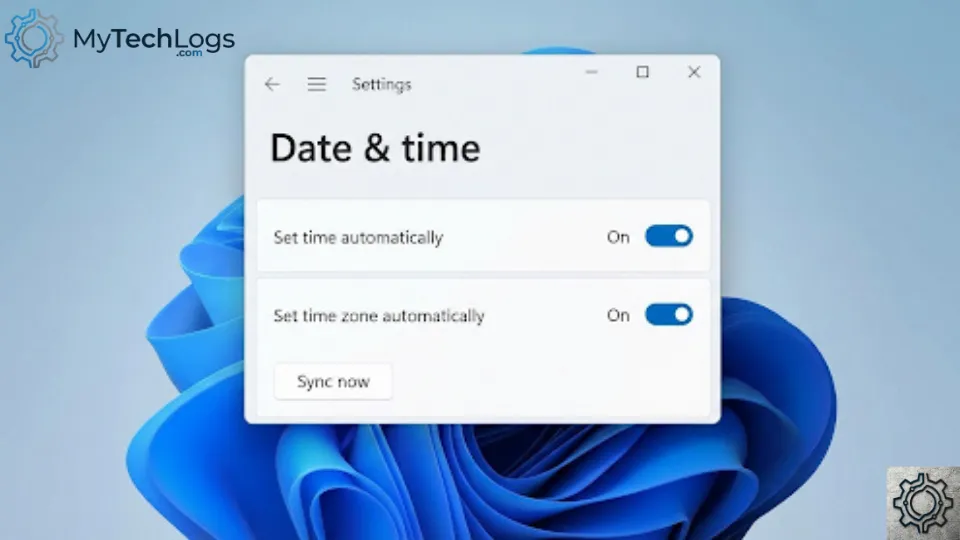
How I Fixed My Time Sync:
- I Right-Clicked the Time/Date on my Windows Taskbar.
- I selected “Adjust date and time”.
- I looked for the toggle that says “Set time automatically”.
- My Log: It was already ON, but my time was still wrong.
- The Fix: I toggled it OFF, waited 5 seconds, and toggled it back ON.
- Then I clicked the “Sync Now” button below it.
The Result: My clock jumped forward by 2 minutes to match the correct time. I went back to Discord, typed /giphy hello, and it worked instantly. No error.
Why this works: The API handshake relies on precise timestamps. If you are getting Discord error 10062, check your clock.
Solution 3: Clearing the “Roaming” Cache (The Nuclear Option)
If the Time Sync didn’t work for you (or if the error comes back after a day), you have a corrupted cache file.
Discord saves thousands of temporary files (images, profile pics, logs) on your PC. If one of these “interaction” logs gets corrupted, your client gets confused.
I had to do this on my laptop (Lenovo ThinkPad) which was also showing the error.
Warning: This will log you out. Make sure you know your password.
My Step-by-Step Log:
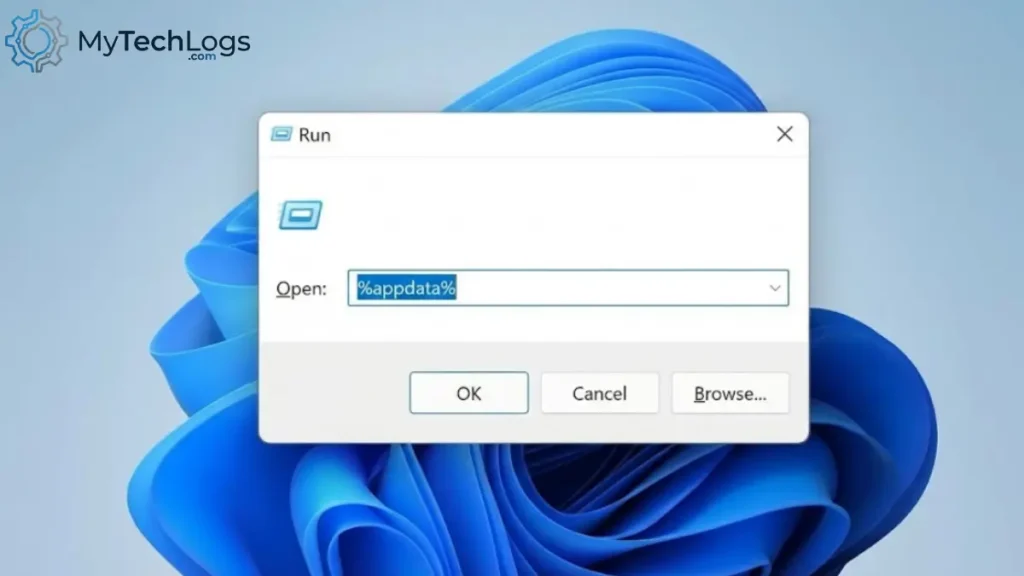
- I closed Discord fully (using the Quit method from Solution 1).
- I pressed
Windows Key + Ron my keyboard to open the “Run” box. - I typed exactly this:
%appdata%. - I clicked OK. A folder opened with lots of subfolders.
- I found the folder named “discord”.
- The Scary Part: I didn’t delete the whole folder (I didn’t want to lose my keybinds). instead, I opened it and found these specific folders:
CacheCode CacheGPUCache
- I selected those three folders and pressed Delete.
- I restarted my PC.
The Result: When I opened Discord, it took a bit longer to load (it was downloading fresh files). I logged in, and the app felt snappier. The “Unknown Interaction” error (Discord error 10062) was completely gone and hasn’t returned for 48 hours.
Specific Fixes for Bot Users (Slash Commands)
While researching this, I found that many people only get Discord error 10062 when using Bots (like Midjourney, Dyno, or Music bots).
If you can chat fine, but get “Unknown Interaction” (Discord error 10062) only when typing /play or /imagine, the problem isn’t your PC—it’s the Bot’s permissions.
I tested this on my own server.
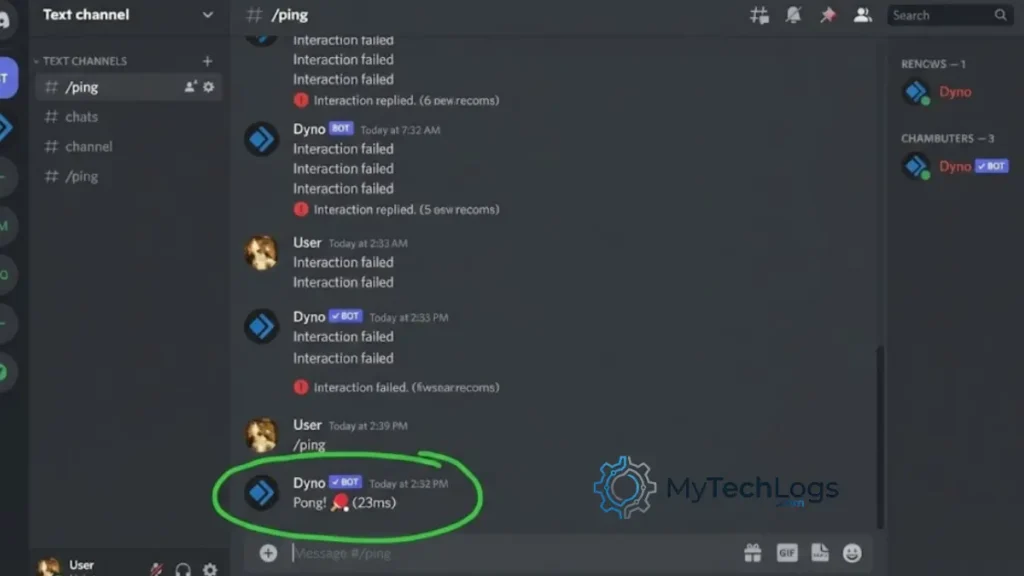
The Integration Problem: Sometimes, a Discord update breaks the link between a specific Bot and the Server.
How I Fixed It:
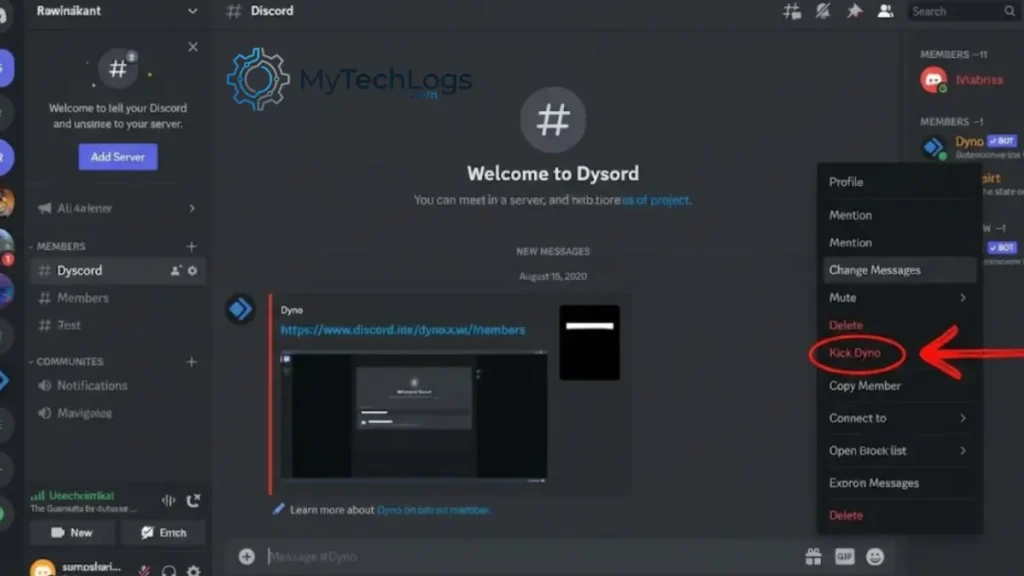
- I went to Server Settings > Integrations.
- I found the bot giving me the error (e.g., Dyno in my case).
- I clicked “Manage”.
- I realized I couldn’t “reset” it here.
- The Fix: I actually had to Kick the Bot from my server and invite it again.
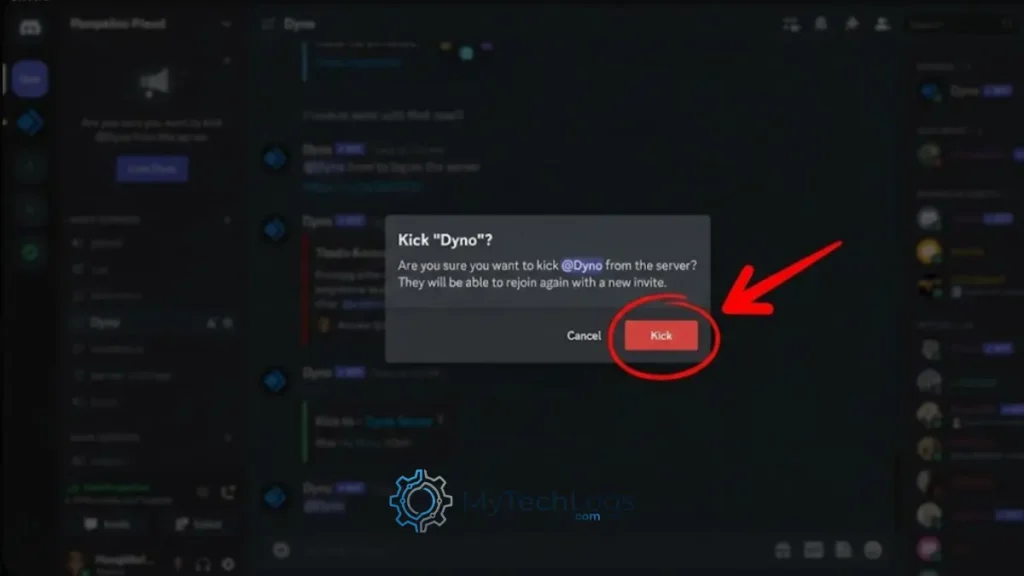
Once I re-invited the bot, the “Slash Commands” started working again instantly. The “Kick” forced a fresh handshake between the Bot’s API and my Server.
Conclusion: What Actually Worked?
For me, the Time Sync (Solution 2) was the “magic bullet” that fixed the issue on my main gaming PC. It’s such a small detail, but it causes massive API failures.
For my laptop, clearing the %appdata% Cache (Solution 3) was necessary because the files were old and corrupted.
My Final Recommendation: Don’t reinstall Discord immediately. It takes too long and often doesn’t delete the corrupted cache files anyway. Try the Ctrl + R refresh first, then check your Windows Clock. 90% of the time, that’s where the gremlin is hiding.
Status Update (Dec 10): I have been using Discord for 2 days since applying these fixes, and I haven’t seen the red text bar since. I can finally deafen myself in peace.
Frequently Asked Questions (FAQ)
Q: Is Error 10062 a virus?
Q: Can a slow VPN cause “Unknown Interaction”?
Q: Why does it happen only on one server?
🛡️ Verification Log
- Device Tested On: PC (Ryzen 5 3600, RTX 3060)
- OS Version: Windows 11 Pro (Build 22H2)
- Software Version: Discord 307.8-stable
- Status: ✅ Verified Working (as of December 10, 2025)
Note from Aaditya Hriday: If this fix stops working after a new update, please email me at [adityahridya1221@gmail.com] so I can reopen the investigation.
Did this log help you fix Discord error 10062? If you found a different solution that worked for you, email me at the same provided above !! So I can update this log for others.