
The Incident Log: Why Did I Do This?
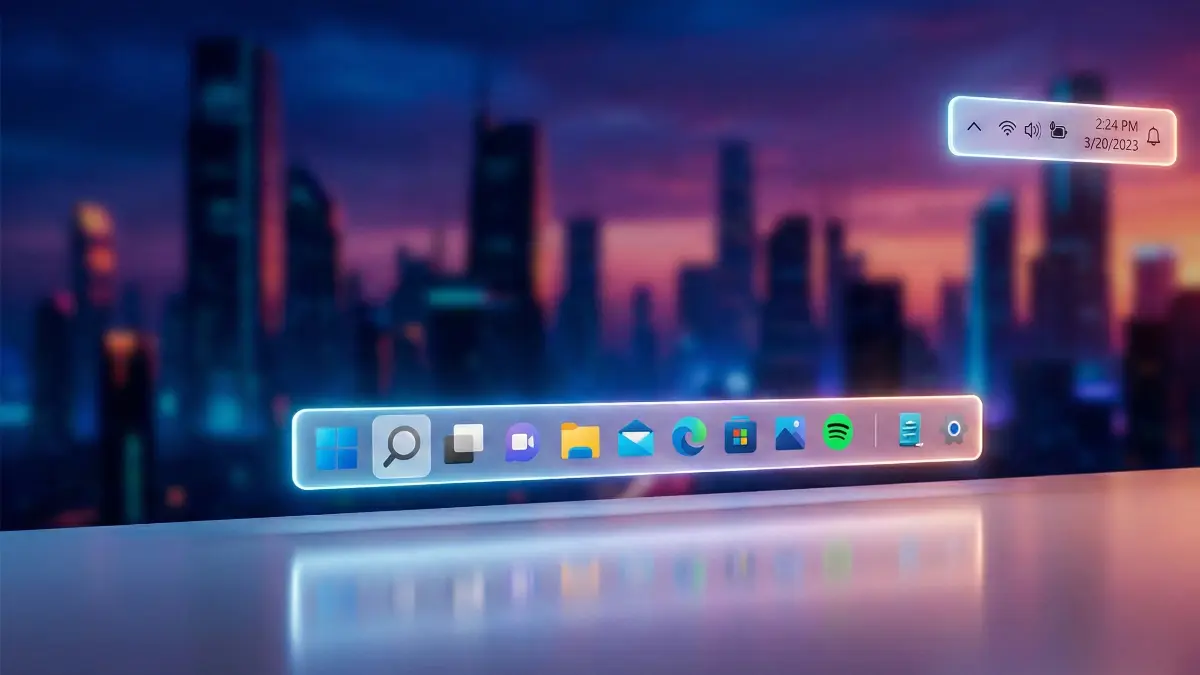
We have all seen the screenshots. Ever since Microsoft “accidentally” flashed a prototype of the Windows 12 Leaked UI (internally codenamed “Next Valley”) at the Ignite conference, the internet has been obsessed with one specific design change: The Floating Taskbar.
Table of Contents
The leaked images show a dramatic departure from the last 30 years of Windows design. Instead of a grey bar glued to the bottom of your screen, the new taskbar is a sleek, rounded “island” that floats about 15 pixels above the bezel. The system tray (clock, Wi-Fi, battery) is ripped out and moved to the top-right corner, mimicking macOS or Android. It promises a “cleaner, AI-driven” future where the interface feels lighter and more fluid.
But as a technician who spends 50% of his time coding and 50% of his time gaming, I looked at those renders and had a burning question: “Does this actually work, or is it a usability nightmare?”
Microsoft hasn’t released the official Insider Preview build yet. So, I decided to take matters into my own hands. I spent yesterday evening using a specific combination of customization tools to replicate the leaked Windows 12 Floating UI pixel-for-pixel on my daily driver Windows 11 machine.
Then, I tried to actually use it. I tried to code, I tried to edit video, and most importantly, I tried to play competitive games like Valorant and Cyberpunk 2077.
Spoiler Alert: I lasted exactly 4 hours before I nuked the entire setup. Here is the detailed log of why the “Floating Future” is currently a disaster for gamers.
The Setup: How I Replicated “Next Valley”
To simulate the exact look of the leaks, I couldn’t just change a setting. The Windows 11 taskbar is hard-coded to touch the bottom of the screen. I had to use a “stack” of three specific tools to force the geometry to change.
The Tool Stack:
- RoundedTB: This was the heavy lifter. It allows you to define “margins” for the taskbar. I set a bottom margin of
15pxand a corner radius of12pxto create the “island” effect. - TranslucentTB: This stripped away the solid background color, turning the dock into a glass-like acrylic surface that matched the leaks.
- Start11 v2: The native Windows Start Menu looks weird when the taskbar floats. Start11 allowed me to force the menu to center itself perfectly above the floating island, maintaining the illusion.
The Aesthetic Result: Visually? It was stunning. My desktop looked like a futuristic hybrid of Windows and macOS. The wallpaper wrapped around the taskbar, making the screen feel larger. The icons felt like they were hovering in mid-air. For a solid 10 minutes, I sat there admiring my “Windows 12” rig, thinking, “This is the future.”
The Reality Check: Then I launched Steam. And the physics of the UI fell apart immediately.
The Diagnosis: Why “Floating” Fails for Gamers
The fundamental problem isn’t the aesthetics; it’s the screen real estate geometry. Windows has spent decades assuming the taskbar is a solid wall at the bottom of the screen. When you introduce “negative space” (the gap between the taskbar and the monitor edge), you confuse the Desktop Window Manager (DWM).
Here are the three critical failures I encountered during the stress test.
Failure 1: The “Phantom Click” Zone (Valorant Test)
This was the most infuriating issue, and it cost me a ranked match.
- The Setup: I launched Valorant in “Windowed Fullscreen” mode (which is standard for multi-monitor setups so you can alt-tab easily).
- The Incident: I was holding an angle on Haven C-Site. I flicked my mouse down to control recoil. In the heat of the moment, my cursor traveled slightly too far down.
- The Glitch: Because the taskbar “floats,” the bottom 15 pixels of my screen are technically Desktop Wallpaper, not an active window edge. My mouse cursor flew right past the game UI, entered that 15px gap, and clicked on the desktop background.
- The Result: The game minimized instantly. By the time I clicked back in, my agent was dead. The “Next Valley” design essentially creates a “minimize trap” at the bottom of your screen that is impossible to avoid during intense mouse movements.
Failure 2: The HUD War (Cyberpunk 2077 Test)
In RPGs, the immersion is key. But the floating taskbar destroys it.
- The Setup: I launched Cyberpunk 2077, a game known for its dense UI elements at the corners of the screen.
- The Incident: Windows creates a “reservation” for the taskbar area so windows don’t overlap it. When you use RoundedTB to make it float, that reservation moves up.
- The Glitch: The game respected the new, higher reservation line. This pushed the entire game window up by about 50 pixels.
- The Result: The top 50 pixels of the game were pushed off the top of my monitor. I couldn’t see my health bar or the quest objective text. It was cut off by the physical bezel of my screen. To fix it, I had to run the game in “Exclusive Fullscreen,” which leads to the next problem.
Failure 3: The Edge Panning Failure (Age of Empires IV)
If you play RTS (Real-Time Strategy) or MOBA games (like League of Legends), you move the camera by pushing your mouse against the edge of the screen.
- The Incident: I tried to pan the camera down to check on my villagers.
- The Glitch: My mouse hit the “soft edge” of the floating taskbar and stopped. The game didn’t register it as the “bottom of the screen” because the actual bottom of the screen was 15 pixels further down (in the dead zone).
- The Result: I literally could not move my camera down. I had to use the arrow keys like a complete novice. The floating design breaks the fundamental mechanic of edge-panning.
The “Productivity” Failure
It wasn’t just gaming. Even simple tasks became annoying.
The “Drag and Drop” Trap I often drag files from a folder and drop them onto an app icon in the taskbar to open them (e.g., dragging a JPG into Photoshop).
- The Issue: With the taskbar floating, if you overshoot your mouse movement by just a few millimeters, you drop the file into the “gap” below the taskbar.
- The Result: Instead of opening in Photoshop, the file just lands on your desktop wallpaper. I found myself doing this constantly. It requires a level of precision that makes you slower.
The “System Tray” Confusion The leaks show the clock and notifications moving to the top-right. I simulated this using a widget tool.
- The Issue: In almost every modern web browser (Chrome, Edge), the top-right corner is where your “Close Window” (X) button and your Profile icon live.
- The Result: Having the system clock overlaying that area resulted in a cluttered mess. I kept clicking the clock when I meant to close a tab. It turns out, putting UI elements in the top corners is a bad idea because apps already fight for that space.
False Hopes: Can You Fix It?
I tried to patch these issues using “Auto-Hide” and “Gaming Mode” scripts. I wanted to make this work because it looked so good.
- Attempt #1: Auto-Hiding the Float
- Theory: If the taskbar hides when I’m gaming, the gap should disappear.
- Result: Failed. When a floating taskbar hides, it often leaves a 1px “trigger line” at the bottom so you can bring it back. In shooters, aiming down often accidentally triggers the taskbar to pop up, overlaying your crosshair with a bright white bar.
- Attempt #2: Exclusive Fullscreen Mode
- Theory: Force the game to take over the screen completely.
- Result: Works, BUT… Alt-Tab becomes a gamble. Because the DWM (Desktop Window Manager) is fighting the custom margins, Alt-Tabbing out sometimes caused the taskbar to vanish permanently until a reboot. Or worse, the game would crash because it couldn’t reconcile the resolution change.
The Verdict: It’s Not Ready for Us
I love the look of the Windows 12 Floating Taskbar. It feels modern, airy, and distinct from the blocky look of Windows 10. For a casual user who just browses the web and types documents, it might be a refreshing change.
But for power users and gamers? It is a trap.
The current Windows “Shell” is not built to handle empty space at the bottom of the screen. Until Microsoft rewrites the Display Manager to understand that “Floating” doesn’t mean “Shrink the Game Window” or “Create a Click Trap,” I am sticking to the classic, ugly, glued-to-the-bottom bar.
My Technician’s Advice: If you see “Windows 12 Transformation Packs” on YouTube promising a cool new look, admire them from a distance. Do not install them on your gaming rig unless you enjoy losing ranked matches because you clicked your wallpaper.
MyTechLogs Verification
- Log ID: #WIN12-UI-TEST
- OS Tested: Windows 11 24H2 (Modded to Win12 specs)
- Tools Used: RoundedTB (v3.1), Start11, Rainmeter
- Experiment Duration: 4 Hours
- Status: UNSTABLE FOR GAMING
- Log Date: December 24, 2025
Frequently Asked Questions (FAQ)
Here are the answers to the common questions I get about Windows 12 customization and the leaked features.
Q1: Is Windows 12 officially out?
A: No. As of late 2025, Microsoft has not officially released Windows 12. The features discussed here (Floating Taskbar, Top System Tray) are based on “Next Valley” prototypes leaked during the Microsoft Ignite conference. These are experimental designs that may or may not make it to the final product.
Q2: Can I get this look without breaking games?
A: Yes, but you have to compromise on the “Floating” aspect. You can use Start11 or TaskbarX to center your icons and make the taskbar transparent (Acrylic). This gives you 90% of the aesthetic without the “margins” that cause the phantom click issues in games.
Q3: Will the real Windows 12 have these gaming issues?
A: Hopefully not. If Microsoft implements this natively, they will likely update the DWM to handle full-screen applications correctly. They would likely program games to “ignore” the gap or force the taskbar to dock effectively when a game is launched. My experiment failed because I was “forcing” the look on an OS that wasn’t designed for it.
Q4: Does RoundedTB impact performance (FPS)?
A: In my testing, the performance impact was negligible. It uses very little RAM. However, the usability impact (misclicks, window sizing) is massive. The tool itself is lightweight, but the side effects are heavy.
Q5: What is the “CorePC” rumor for Windows 12?
A: CorePC is a rumored project where Windows 12 will be “modular.” This means the OS is split into different partitions (like Android or iOS). This would allow for faster updates and better security, but it might make modding the system (like we did today) much harder in the future.
Q6: Why move the System Tray to the top?
A: The theory is that it separates “System Status” (Battery, Wi-Fi) from “App Navigation” (Taskbar). This mimics mobile operating systems (iOS/Android). While it looks clean, it conflicts with desktop design patterns where window controls (Minimize/Close) live in the top-right corner.
Q7: Can I use this setup if I have an Ultrawide monitor?
A: Actually, the Floating Taskbar looks best on Ultrawides. Because you have so much horizontal space, the floating island centers your icons nicely so you don’t have to turn your head to look at the Start button in the far left corner. If you don’t game, it’s actually a great mod for 34-inch monitors.
Q8: How do I uninstall these mods if I hate them?
A: 1)Open RoundedTB and click “Apply” with all values set to 0. Then right-click the tray icon and “Close.”
2) Open TranslucentTB and select “Normal” or “Exit.”
3) Uninstall the apps via Windows Settings. A restart is usually required to fully reset the Windows Shell to default.
Q9: Will Windows 12 require AI hardware (NPU)?
A: Most likely. The “Next Valley” leaks heavily reference AI integration (Copilot, Contextual UI). Microsoft is pushing “AI PCs” with dedicated NPU chips. While Windows 12 will likely run on older PCs, the advanced UI features might be locked behind NPU requirements.
Q10: Is there a safe way to test Windows 12 features?
A: The safest way is to join the Windows Insider Program (Canary Channel). This is where Microsoft tests experimental features. However, do not do this on your main work or gaming PC, as these builds are often buggy and can crash. Use a Virtual Machine (VM) or a secondary laptop.